A single file for expense receipts
A dozen phone photos of invoices and travel receipts, sorted by date, become one PDF with “A4 portrait” and a 36 pt margin; finance prints it and every receipt sits centred and the same size.
Guide
Image to PDF combines one or more images into a single PDF in the order you arrange, with one image to a page; the page can follow the image itself or be a uniform portrait or landscape A4, with a margin on all four sides. Everything happens in the browser and the images are not uploaded.
Updated 2026-09-093 sources10 min read
Image to PDF combines one or more images into a single PDF in the order you arrange, with one image to a page; the page can follow the image itself or be a uniform portrait or landscape A4, with a margin on all four sides. Everything happens in the browser and the images are not uploaded.
It is built for turning a pile of pictures into a file you can send and print: phone photos of receipts, JPGs exported by a scanning app, a few design drafts, a set of screenshots. Compared with dropping images into a chat app, a PDF keeps the order and the page size, and the recipient will not see them squashed into blurry thumbnails.
What it does is wrapping, not recognition: the PDF it produces has no text layer, so it cannot be searched and its text cannot be copied. For searchable text, use an OCR tool; to add pages to an existing PDF, send the result into “PDF Merge”.
file name.pdf; the result card offers “Download again” or “Add to workspace” to keep going — to add a watermark or page numbers, for example, or to merge the file with other PDFs.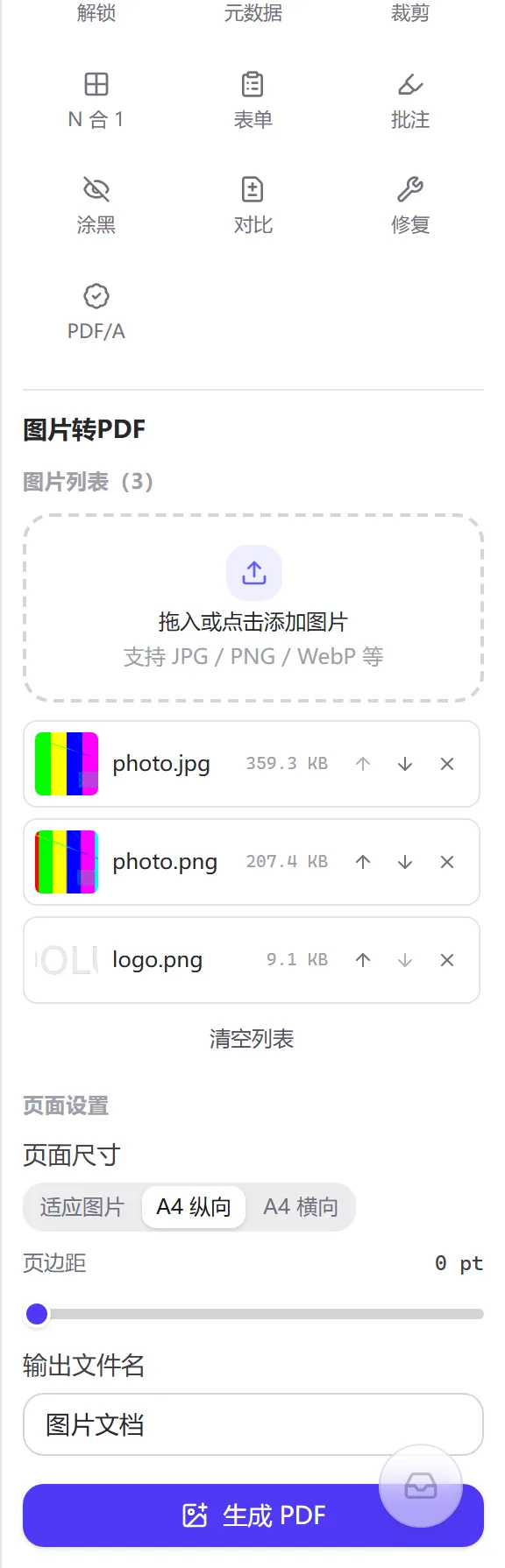
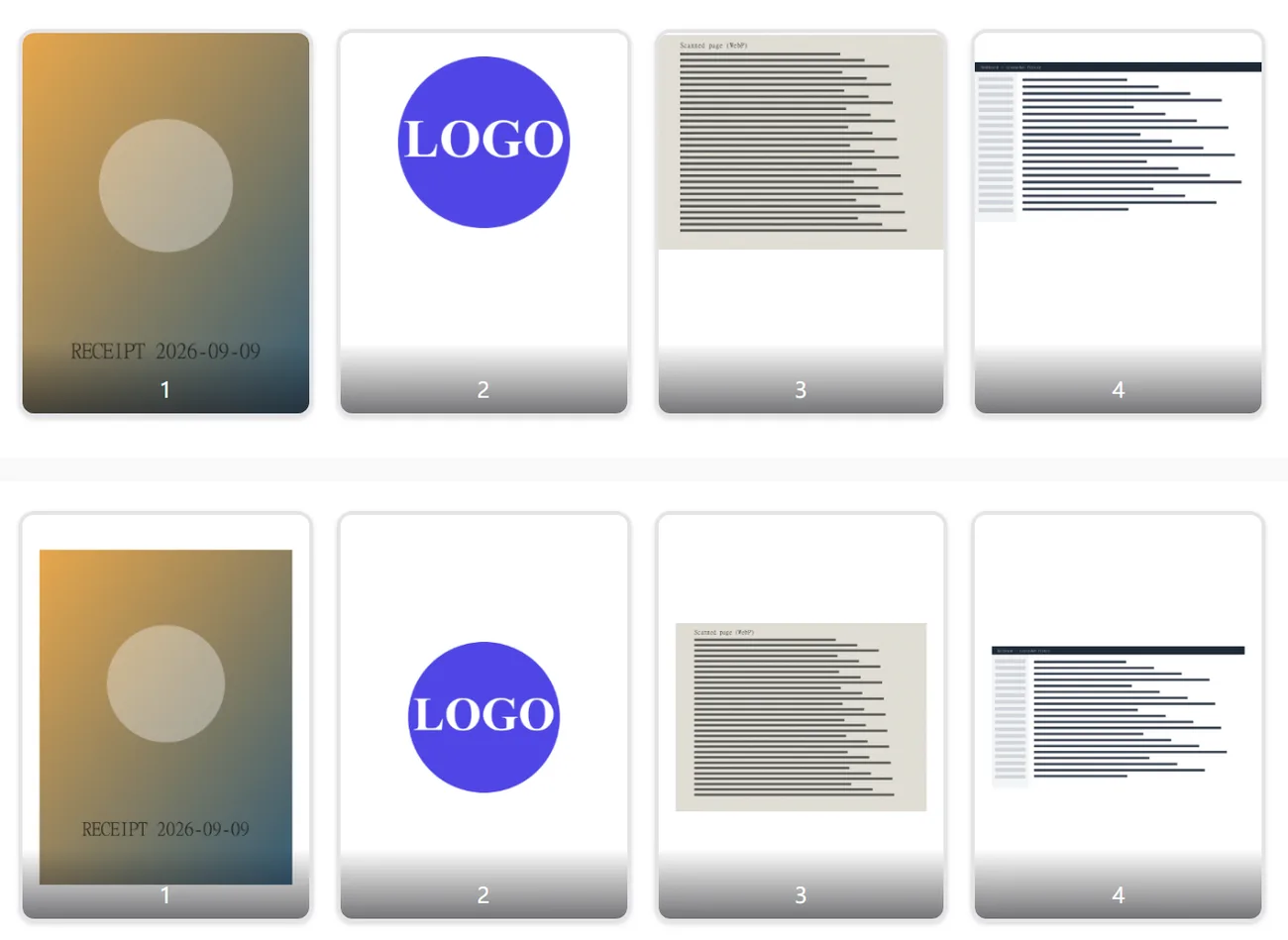
Four images from different sources, in “Fit image” mode with a 0 pt margin:
Input file                      Format   Original bytes   Image stream inside the PDF                 Page size
photo-3000x4000.jpg             JPEG     1,320,529        DCTDecode 1,320,529 (byte for byte)         2250 × 3000 pt
logo-800x600.png (transparent)  PNG      22,732           Flate 16,907 + SMask 5,626 (alpha split)    600 × 450 pt
scan-1600x1200.webp             WebP     350,694          Flate 3,167,812 (re-encoded as PNG, ×9)     1200 × 900 pt
screenshot-1920x1080.png        PNG      22,208           Flate 23,535                                1440 × 810 pt
Total                                     1.64 MB          Output 4.54 MB
The same four images switched to “A4 portrait” with a 36 pt margin produce 4,536,687 bytes — 98 bytes more than the table above, and all four pages are 595.28 × 841.89 pt. The page rule changes only the drawing instructions, not the embedded images.
The page and object structure of a PDF is covered in the “How it works” section of “PDF Merge” (see here); how pt relates to pixels and DPI is set out in more detail in “PDF to Image” (see here). This section covers only the two things that happen when an image enters a PDF: how the bytes get in, and how the page size is worked out.
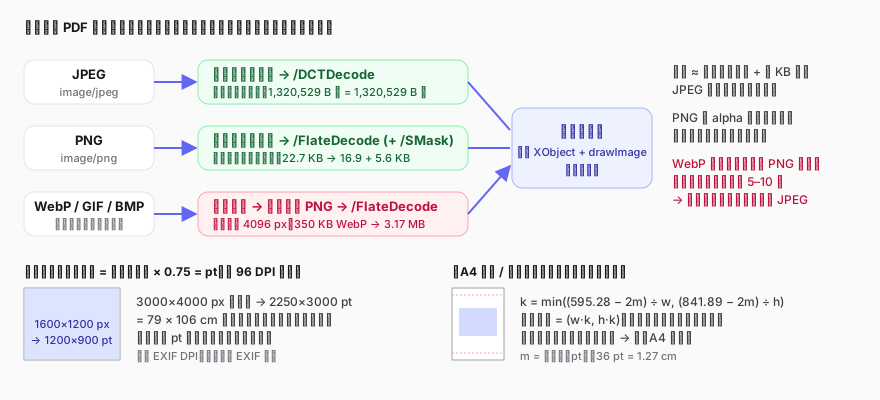
PDF natively supports two image compression filters that happen to match these two formats: a JPEG data stream can be embedded directly as a DCTDecode image object, and PNG pixels after zlib compression are FlateDecode. The tool neither decodes nor re-encodes these two formats — that is why the JPEG in the table above has identical byte counts going in and coming out. It means the quality and the size of a photo are decided by the file you hand over, and converting to PDF costs nothing further.
PNG is slightly different: a PDF image object has no alpha channel, so a PNG with alpha is split in two — the colour data in one part, the alpha stored separately as a soft mask (/SMask). Transparent areas show the white page through them, so a logo does not arrive on a black rectangle.
PDF has no WebP filter. Those formats are decoded to a canvas by the browser first (anything whose longest side is over 4096 px is scaled down proportionally), and the canvas is then encoded as PNG and embedded. PNG is lossless, and for photographic content with noise it is far larger than lossy WebP — the 350 KB WebP scan above became 3.17 MB inside the PDF. GIF contributes its first frame only; animation is not kept.
The practical conclusion: for photographic WebP or HEIC, convert to JPEG with “Image Converter” first, and the size can differ by an order of magnitude; line art and screenshots are smaller as PNG, so there is nothing to worry about there.
An image has pixels and no physical size, while a PDF page has to be measured in pt (1/72 inch). The tool follows the convention of the web world, 1 px = 1/96 inch = 0.75 pt, and simply multiplies pixels by 0.75: 1600 × 1200 px becomes 1200 × 900 pt, and a 3000 × 4000 px phone photo becomes 2250 × 3000 pt — the equivalent of a 79 × 106 cm sheet of paper. Nothing is wrong with that; readers scale the display, and printer drivers “fit to paper”. But if the result is going to be merged with an A4 document, you would end up with one giant page among normal ones, and A4 mode is the one to pick there.
The EXIF resolution in an image (300 DPI, say) plays no part in the calculation, and when a JPEG is embedded directly its EXIF orientation flag is not applied either: a portrait photo that other viewers “straighten” from the flag may lie on its side in the PDF — rotate it upright with an image tool first.
The page is fixed at 595.28 × 841.89 pt (swapped in landscape). The usable area is the page minus twice the margin, the scale factor is min(usable width / image width, usable height / image height), and the image is scaled by that factor and centred — never cropped, never stretched. A landscape image on a portrait A4 page occupies a band in the middle with white above and below, which is a good reason to choose “A4 landscape”; a mixed set of images can only use one orientation, and if pages have to differ, generate the PDF and then rotate individual pages with “PDF Page Organizer”.
A dozen phone photos of invoices and travel receipts, sorted by date, become one PDF with “A4 portrait” and a 36 pt margin; finance prints it and every receipt sits centred and the same size.
A student sorts photos of the pages by question number and generates with “Fit image”, so each page is one photo the teacher can flip through; “Image Compress” keeps each of them down to a few hundred KB before handing in.
A set of PNG designs turned into one PDF, page order matching the order of the discussion; PNG is embedded as-is, so flat colour and the edges of text stay crisp.
Usually because WebP, GIF or BMP files are in the list: they are re-encoded as lossless PNG, which can inflate photographic content several times over. Convert them to JPEG with “Image Converter” first.
Use the up and down buttons at the right of each row in the image list — whatever is at the top appears first in the PDF. If the order needs changing after generating, “Add to workspace” and drag the pages in “PDF Page Organizer”.
The JPEG is embedded directly, so its EXIF orientation flag is not applied. Rotate the photo for real with an image tool such as “Batch Rotate and Flip” first.
This tool puts one image on each page. Generate the PDF first and then use “PDF N-up” to fit 2 or 4 pages onto an A4 sheet; or build a single image from them with the collage tool and convert that.
Browsers cannot decode HEIC directly, so parsing fails here. Convert the HEIC to JPEG in “Image Converter” (which decodes it for you) and then add it.
Reading and decoding images and assembling the PDF all happen inside your browser: nothing is uploaded and the tool works without a network connection. See the privacy policy for more.
/SMask soft mask): https://opensource.adobe.com/dcs/pdf/PDF32000_2008.pdf(访问日期:2026-09-09)PDFDocument.embedJpg() and embedPng() — JPEG embedded directly, PNG parsed with the alpha separated out: https://pdf-lib.js.org/docs/api/classes/pdfdocument#embedjpg(访问日期:2026-09-09)Updated 2026-09-09
Combine JPG / PNG / WebP into a PDF; pages fit the image or use A4
Everything runs locally in your browser; files are never uploaded to a server