Loading…
Loading tool…
Guide
Merge PDF Files
Useful for scans, contract attachments, handouts and multi-part reports: it joins several independent PDFs into one file in the order you choose. Source PDFs are read and combined entirely in your browser — nothing is uploaded, which suits documents that must not leave your machine.
Updated 2026-09-275 sources5 min read
On this page
What it does
Useful for scans, contract attachments, handouts and multi-part reports: it joins several independent PDFs into one file in the order you choose. Source PDFs are read and combined entirely in your browser — nothing is uploaded, which suits documents that must not leave your machine.
Merging is concatenation, not re-layout: every page is copied over from its source file untouched, so text, images and vector content are never recompressed and never lose sharpness. The output has exactly as many pages as all sources combined.
How to use
- Choose filesclick to select or drag in multiple PDFs; the list shows them in the order they were added.
- Arrange the orderdrag list items around — the list order is the page order of the final file.
- Run the mergeclick merge and let local processing finish; larger files and page counts take longer.
- Preview and downloadcheck the page order in the preview, then download the exported PDF.
The merge tool itself sits right above this article: choose a few PDFs, drag to reorder, and click merge.
Input and output example
For example, combine cover.pdf, body.pdf and appendix.pdf in that order into one delivery file:
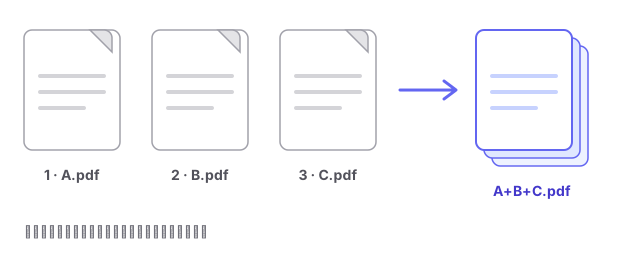
If the order is wrong you do not have to re-select anything — just drag the list items. The comparison below shows the list before and after dragging the appendix from first to last position:
Before the adjustment the appendix sat first in the list; after dragging it to the end, the output order becomes cover, body, appendix.
How it works
Internally a PDF is a page tree; merging copies each source file's page objects and their resources into a new tree and numbers them in list order1 — the full object model, page tree and the reason bookmarks get lost are explained in PDF file structure basics (an on-site guide, not yet published). What matters for merging: page content streams are copied verbatim, with no render-and-re-export round trip, so the following holds:
| Content | Preserved after merging? |
|---|---|
| Text, images, vector graphics | Preserved, no recompression |
| Page size and orientation (A4, landscape, …) | Preserved; mixed sizes merge fine |
| Form fields, annotations | Preserved in most cases |
| Bookmarks (outline tree) | Not preserved — rebuild them with PDF page management afterwards |
| Encryption and permission settings | Not inherited — the output file is unencrypted |
What about encrypted or damaged PDFs?
A PDF with an open password must be unlocked first (use PDF decrypt with the password) before it can join a merge; files with only permission restrictions (no printing/copying) usually merge directly. A damaged file the browser cannot parse shows an error in the list — repair it or re-export a fresh copy first.
- The page tree and object structure are defined in ISO 32000-2 §7.7.3. The in-browser implementation uses pdf-lib's
copyPages, copying object references page by page. ↩
Common pitfalls
- Bookmarks are lost: the merged file has no outline tree. Rebuild the table of contents with PDF page management afterwards if you need one.
- No deduplication: identical pages in two source files are both kept as-is; the tool never guesses about duplicate content.
- The list decides the order: alphabetical file names have no effect — the final order is always the on-page list order.
Scope and limitations
- Accepted input
- standard PDF files (mixed page sizes and orientations included)
- Encrypted files
- PDFs with an open password must be unlocked first; the output does not inherit encryption
- Damaged files
- unparseable files show an error in the list and need repairing first
- Size ceiling
- very large files and page counts are limited by available browser memory; for hundreds of MB, merge in batches
- What it does not do
- no compression, no deduplication, no bookmark rebuilding, no OCR
Typical use cases
- Combine several scans into one PDF
- Merge handouts or reports in chapter order
- Attach exhibits to a contract PDF
- Reorder several PDFs before one final export
FAQ
Does merging reduce quality?
No. Pages are copied verbatim; text and images go through no re-rendering or second compression, so the output matches the sources page for page.
Can I merge only some pages of a file?
This tool merges whole files. To pick pages, extract them first with PDF split or PDF page management, then come back and merge.
Merging files of several hundred MB fails — what now?
In-browser processing is bounded by memory. Shrink the sources with PDF compress first, or merge in two or three batches and then merge those results.
Privacy
PDF files are processed locally in the browser by default; document contents do not need to be uploaded. Data is released from memory when you close the page.
References & further reading
- PDF file structure basics (an on-site guide, not yet published) — the object model, page tree and incremental updates, and how they decide what merging, splitting and compression can preserve.
- ISO 32000-1:2008, Document management — Portable document format — Part 1: PDF 1.7, §7.5 file structure, §7.7.3 page tree, §7.5.7 object streams, §12.3 document-level navigation (bookmarks). Adobe public mirror: https://opensource.adobe.com/dcs/pdf/PDF32000_2008.pdf(访问日期:2026-09-08).
- ISO 32000-2:2020 — PDF 2.0 specification(访问日期:2026-09-08) — the current definition of the page tree and document object structure.
- pdf-lib documentation, "Copy Pages" and the
PDFDocument.copyPagesAPI: https://pdf-lib.js.org/(访问日期:2026-09-08). - Mozilla pdf.js, the in-browser PDF renderer (used by this tool for thumbnails and password checks): https://mozilla.github.io/pdf.js/(访问日期:2026-09-08).
- MDN Web Docs, File API overview (how files are read into browser memory): https://developer.mozilla.org/en-US/docs/Web/API/File_API(访问日期:2026-09-08).
Sources
Updated 2026-09-27
PDF Studio
Merge PDF
Combine several PDFs into one file in the order you choose
Drop files here, or click to choose
Supports PDF and JPG / PNG / WebP images (images become PDF pages), with multiple selection
You can also paste with Ctrl+V
Everything runs locally in your browser; files are never uploaded to a server