Put a one-page chart into a slide deck
Page 7 of a paper holds the key figure. Click page 7, PNG, 150 DPI, and a 1240 × 1753 image comes out, ready for the deck.
Guide
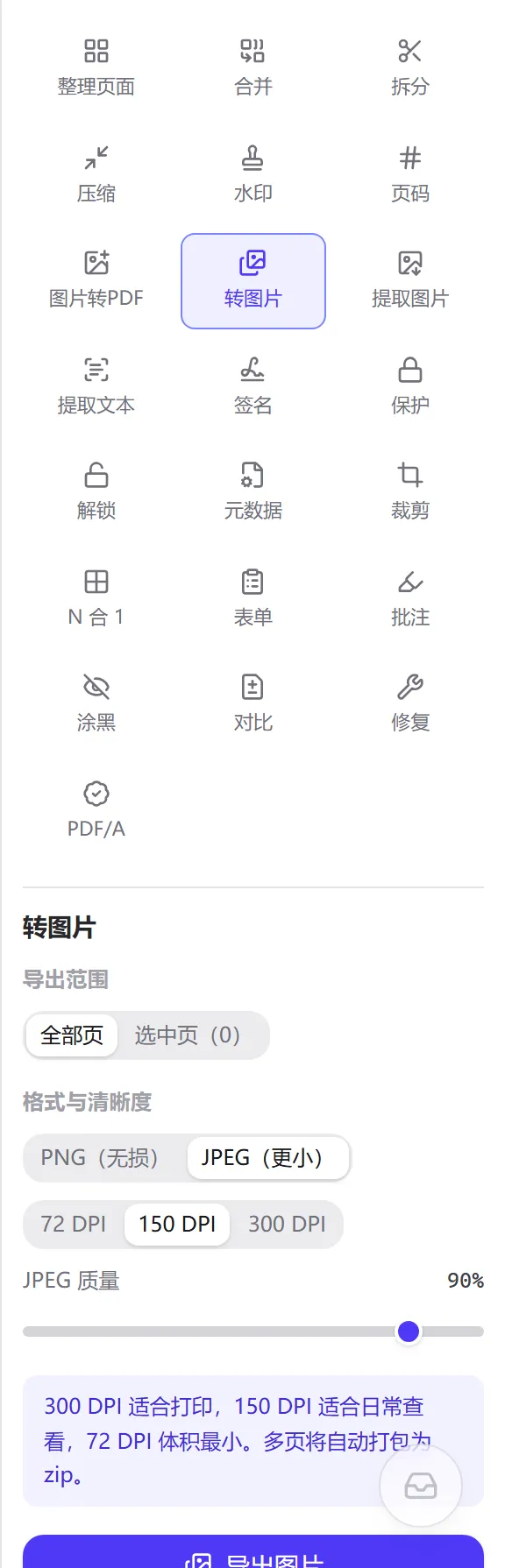
PDF to Image renders each page of a PDF into a bitmap and exports it in the format you choose (PNG or JPEG) at the sharpness you choose (72, 150 or 300 DPI). Everything runs in the browser and the file is never uploaded.
Updated 2026-09-094 sources10 min read
PDF to Image renders each page of a PDF into a bitmap and exports it in the format you choose (PNG or JPEG) at the sharpness you choose (72, 150 or 300 DPI). Everything runs in the browser and the file is never uploaded.
People reach for it not to “read” a PDF but to put a page somewhere else: a figure from a paper into a slide deck, the first page of a contract into a chat window that only takes pictures, an e-poster exported as an image that previews directly on social platforms, or a set of page images for a device that cannot open PDFs.
What comes out is the rendered whole page: text, vector art, embedded images and annotation appearances are all drawn into one picture. If you want the photo that was originally embedded in the PDF (at its original resolution, without the surrounding text), use “PDF Extract Images” — different job, different tool.
The export can cover every page or only the pages you click in the middle area; multiple pages are packed into a zip automatically and a single page downloads as an image file. File names carry a zero-padded page number (for example report_page03.png) so that sorting by name keeps the right order.
filename_images.zip.An eight-page A4 text report (report.pdf) produced these real outputs under four settings:
Settings                Pixels per page   Single file   8-page zip
PNG  · 72 DPI           595 × 841         ≈ 74 KB       483 KB
PNG  · 150 DPI          1240 × 1753       ≈ 300 KB      1.84 MB
JPEG · 150 DPI · 90%    1240 × 1753       ≈ 338 KB      2.41 MB
JPEG · 300 DPI · 90%    2480 × 3507       ≈ 840 KB      6.05 MB

File naming
  report_page1.png … report_page8.png      (no zero padding below 10 pages)
  report_page01.png … report_page12.png    (from 10 pages up, padded to the widest page number)
  report_images.zip                        (multi-page packaging)
Note the second and third lines: at the same resolution, a JPEG of a text page is larger than the PNG. That is not an anomaly — the “How it works” section explains why.
A PDF page has no pixels; it describes its size in points (pt), and 1 pt = 1/72 inch. A4 is 595.28 × 841.89 pt, which is 8.27 × 11.69 inches. To draw it as a bitmap, you first have to decide how many pixels go into an inch — that is DPI (dots per inch):
So A4 at 72 DPI is 595 × 841 pixels (a scale factor of exactly 1), at 150 DPI it is 1240 × 1753, and at 300 DPI it is 2480 × 3507. The pixel count is proportional to the square of the DPI: a 300 DPI image has 17 times the pixels of a 72 DPI one, and the size grows roughly in that proportion (for PNG) or a little more slowly (for JPEG).
The three steps match three destinations: 72 DPI is close to the physical density of a classic screen and is enough for thumbnails and chat; 150 DPI still looks clean on a high-density display and is the sensible compromise for Word or slides; 300 DPI is the usual requirement in print and the choice when you want to zoom into small type.
The tool draws the page onto a canvas with pdf.js at a scale factor of DPI ÷ 72, applying any rotation the page carries in the workspace. Canvas dimensions are rounded down, so 841.89 becomes 841 and not 842. Text is rasterised from font outlines, vector art is filled along its paths, and images embedded in the PDF are resampled to the current scale (an embedded 300 DPI photo loses most of its pixels when you export at 72 DPI).
The canvas then goes to the browser's image encoder:
That is why a text page is smaller as PNG than as JPEG (90%): a page of black type on white is “very few colours plus lots of repetition” to PNG, and “high frequencies everywhere” to JPEG. In the other direction, a scan or photo page as JPEG is usually a third to a fifth of the PNG size.
Dropping quality from 90% to 75% roughly halves the size; in photos the difference is almost invisible, while text edges start to show light noise. Below 50%, block artefacts become obvious. The default 90% is the setting that does not go wrong when you would rather not think about it; when the goal is a quick look by someone else, around 75% is often enough. The slider stops at 30% on purpose — below that there is no reading value left.
The page number in the file name is the page's ordinal in the current arrangement: if you deleted page 2 in the middle area first, the old page 3 exports as “page2”. The digits under a thumbnail are always that ordinal.
Page 7 of a paper holds the key figure. Click page 7, PNG, 150 DPI, and a 1240 × 1753 image comes out, ready for the deck.
The other side cannot comfortably open a PDF on a phone. Click page 1, JPEG, 72 or 150 DPI, and a few dozen to a few hundred KB of image previews at a glance.
The designer delivered a PDF and the platform only accepts images. All pages, PNG, 150 DPI; if the poster is photographic, JPEG 90% is smaller.
Text recognition on a scan comes out poor. Export all pages as PNG at 300 DPI and feed them to the OCR tool; the recognition rate usually rises clearly.
Let the content decide: text, tables and line drawings take PNG (lossless and often smaller); photos and scans take JPEG (much smaller). If unsure, start with PNG and switch if the size is too high.
For A4: 595 × 841, 1240 × 1753 and 2480 × 3507 pixels. For another paper size, compute “page width (pt) ÷ 72 × DPI”.
Because the page is mainly text. JPEG is inefficient on sharp edges, while PNG is efficient on content with few colours and repetition. It is a difference between the two algorithms, not a wrong setting.
Not directly. Export PNG first, then batch-convert to WebP and the like with “Image Converter”.
300 DPI means 8.7 million pixels to render and encode per page, and both time and memory add up with the page count. Drop to 150 DPI, export only the pages you need, or run it in batches.
Yes — they are drawn into the picture as they appear in a reader. Form fields export the appearance of their current values, though a picture can of course not be filled in afterwards.
Parsing and rendering the PDF happen locally via pdf.js, PNG/JPEG encoding is done by the browser's built-in encoder, and the zip is packed locally too; no page content leaves your device. It works offline, and closing the page frees the memory.
HTMLCanvasElement.toBlob(), formats and the quality parameter: https://developer.mozilla.org/zh-CN/docs/Web/API/HTMLCanvasElement/toBlob(访问日期:2026-09-08)Updated 2026-09-09
Export the whole document or selected pages as PNG / JPEG at 72–300 DPI, zipped
Everything runs locally in your browser; files are never uploaded to a server