Pull your own article out of a full issue
A journal sends a 180-page issue PDF and your paper sits on pages 41–53. Enter the range 41-53, and a 13-page file comes out with _pages41-53 in its name.
Guide
PDF Split cuts a multi-page PDF into separate PDF files according to rules you give it. All of the work happens in the browser; the source file is neither uploaded nor modified.
Updated 2026-09-094 sources12 min read
PDF Split cuts a multi-page PDF into separate PDF files according to rules you give it. All of the work happens in the browser; the source file is neither uploaded nor modified.
The need usually sounds like “one document, several destinations”: a contract whose signature page must go to the other party on its own; a scanner that turned a stack of forms into one 100-page file when every 4 pages belong to one person; a journal issue whose PDF you want to strip down to your own article; or the opposite — a platform that caps the page count per file, so a long document has to go up in pieces.
Four ways to cut: by range (one file per range, or all ranges combined into one), every N pages (equal parts), selected pages (ticked in the thumbnails and pulled out as a new file) and page by page (one file per page). More than one output file is packed into a zip automatically; a single file downloads as a PDF.
The split works on the “current arrangement”, not the original file: delete a blank page or straighten a rotated one in the middle area first, and the page numbers and content follow the tidied state. That makes “tidy, then split” a single workflow, but it also means the page numbers you type refer to what is on screen.
1-3,5,8-10 into “Page ranges”; each range becomes one file. Turn on “Merge all ranges into one file” to join the ranges into a single file in the order you entered them.
- Every N pages: fill in “Pages per file”; the document is divided from page 1 in equal parts, and the last part may hold fewer than N pages.
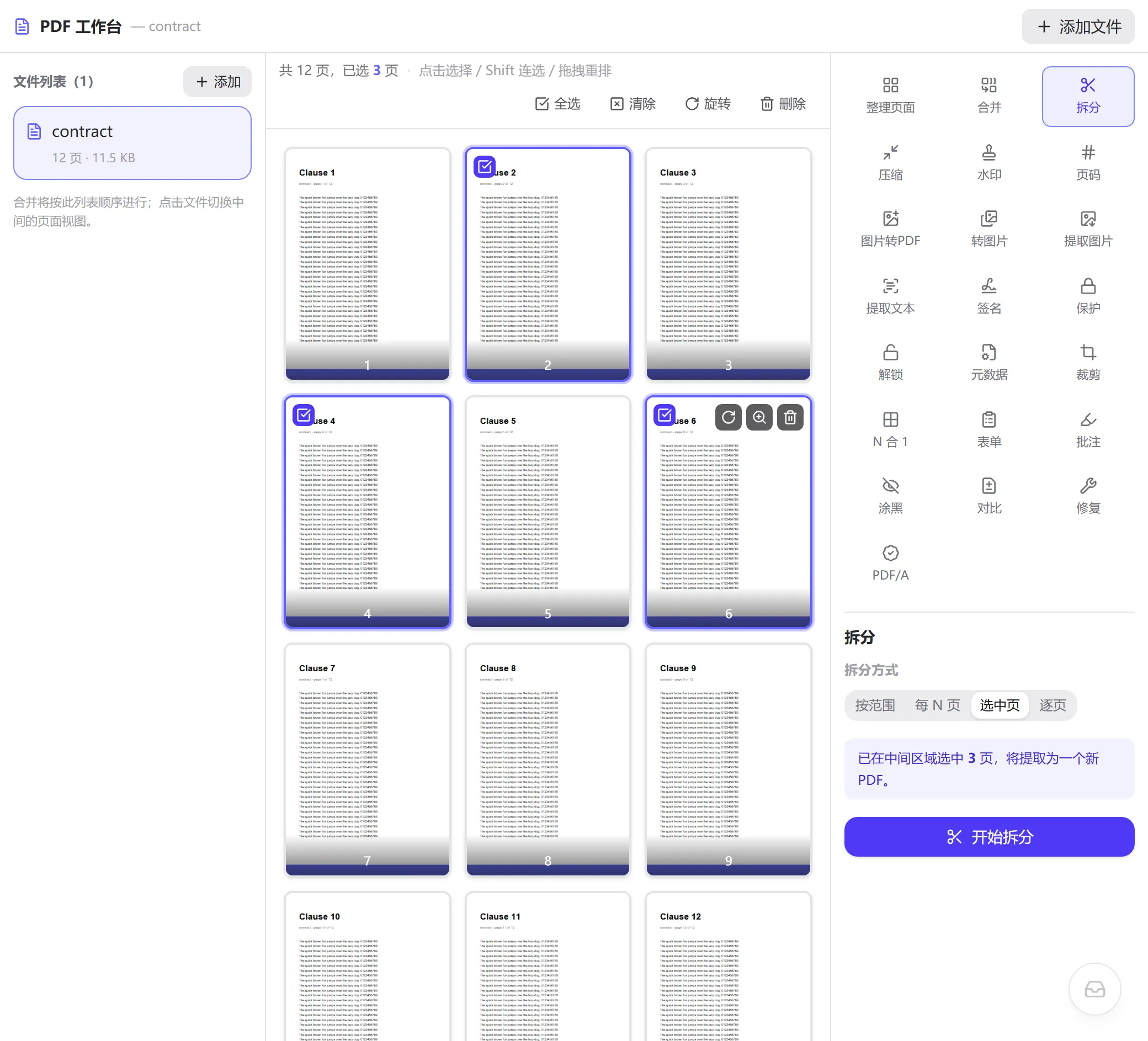
- Selected pages: click pages in the middle area (Shift-click for a run); the panel shows how many are selected and the output is one PDF containing only those pages.
- Page by page: one single-page PDF per page, all packed into a zip.contract_pages1-3.pdf; multiple files are packed as contract_split.zip.Two splits of a 12-page contract (contract.pdf, 11.5 KB) produce these real outputs:
The range syntax accepts these forms:
Forms that are rejected with a reason: 0-3 (pages start at 1), 5-2 (start page greater than end page), 10-15 (beyond the page count, the actual count is reported), a-b (not recognised).
By range: 1-3,5,8-
  contract_split.zip (10.2 KB), containing 3 files
    contract_pages1-3.pdf    3 pages
    contract_pages5.pdf      1 page
    contract_pages8-12.pdf   5 pages    ← "8-" means page 8 to the end
  pages 4, 6 and 7, which appear in no range, are not output

Every N pages: N = 4
  contract_split.zip (12.8 KB), containing 3 files
    contract_pages1-4.pdf
    contract_pages5-8.pdf
contract_pages9-12.pdf1-3,5,8-10 commas separate; a hyphen marks an inclusive range
1-3、5 8-10 the Chinese enumeration comma and spaces also separate
2—5 2~5 em dashes and tildes are normalised to "-"
9- through to the last page
-3 from page 1 to page 3
1-3,2-6 ranges may overlap: pages 2 and 3 appear in both outputsA PDF file has no “page 5” field. A page tree hangs beneath the document catalogue, with /Page objects as its leaves; a reader walks the tree depth-first, and the fifth leaf it meets is called page 5. That ordinal is the physical page number, and it has no necessary connection to a “5” printed on the page or to “Chapter 5 … 5” in a table of contents.
PDFs can also define page labels at document level, letting a reader show a preface as i, ii, iii and restart the body at 1. The range input here uses physical page numbers — the digits under each thumbnail. If your file has a Roman-numeral preface, enter the thumbnail numbers, not the printed page numbers.
Splitting and merging share one mechanism: pdf-lib creates an empty document, and pages are “copied” out of the source in groups. When a page is copied, the content streams, fonts, images and page-level annotations it references are deep-copied and renumbered along with it; page rotation is written through /Rotate. The groups are independent of one another — the output of group 1 knows nothing about group 2.
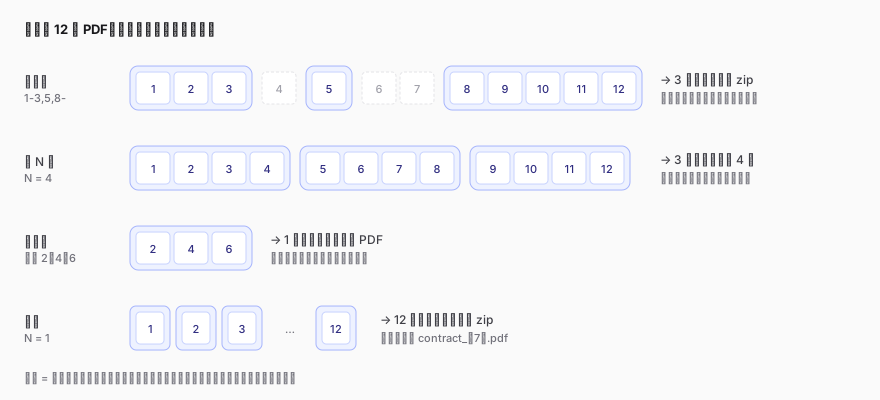
The “every N pages” grouping cuts after every N pages starting from page 1 of the current arrangement, and the last group takes the remainder; “by range” creates groups strictly in the order you enter, and overlapping ranges copy pages more than once; “selected pages” places the selected pages in one group in their arrangement order; “page by page” is simply N = 1.
Each extracted file must open on its own, so resources shared by several pages in the source — most typically embedded fonts — exist once in every output file. A 12-page document with 3 embedded fonts split into 3 parts keeps the font data 3 times. On top of that, the workspace copies pages one at a time to support per-page tidying, so a font shared by several pages of the same output is copied page by page as well (the “How it works” section of “PDF Merge” has the details). In the example above the source file uses PDF's built-in standard fonts and carries no embedded font data, so the three parts together stay about the original size; for a document with embedded fonts, the sum will be noticeably larger.
The reverse is also true: splitting does not “unlock” anything. If a page of the source holds a 20 MB scanned image, the extracted page is 20 MB.
As with merging, copying pages takes only page-level content. Document-level structures — bookmarks, form field definitions, attachments, named destinations, document properties — do not enter any output file, and cross-page links that rely on named destinations stop working. A file with a digital signature loses the signature when split — the common result of every operation that rewrites a PDF's structure, not something particular to splitting.
Multiple output files are packed into one zip by JSZip inside the browser (DEFLATE compression level 6). Streams inside a PDF are usually compressed already, so the zip almost never shrinks the total; its job is to let the browser download several files at once. Once unzipped, every PDF is complete and independent.
8-10,1-3 produces one file holding pages 8–10 first and pages 1–3 after. That saves a download compared with split-then-merge, and it doubles as a quick way to reorder pages.1-4,1,5-8,1,9-12 yields 5 files — three 4-page sections and two lone covers; if what you want is “every section carries a cover”, the more direct route is one run of “merge into one file” per section with 1,5-8.A journal sends a 180-page issue PDF and your paper sits on pages 41–53. Enter the range 41-53, and a 13-page file comes out with _pages41-53 in its name.
An administrator scans 30 three-page onboarding forms in one go. “Every N pages”, N = 3, yields 30 files; unzip them and rename against the roster in order.
A 12-page contract needs only its last page signed and returned. Tick page 12 in the thumbnails and use “selected pages”, or type 12 as a range.
A platform refuses PDFs over 50 pages and the training manual runs to 230. “Every N pages”, N = 50, makes 5 files, the last with 30 pages.
No. The source is read into memory only, and every output is a newly built document. Closing the page releases the memory and leaves your original exactly as it was.
A browser can only trigger one download at a time, and packing the files into a zip is how you collect them all in one go. A single output downloads directly as a PDF. The zip uses standard DEFLATE compression and unpacks on any system.
Not at present. The tool does not parse bookmark structures or recognise body text. Look up the chapter start pages in a reader and enter them as ranges.
Splitting copies pages one by one, so the speed scales with the page count and the weight of each page, and generating the thumbnails takes time as well. Mobile browsers have less memory to spare — a scan of several hundred pages is better handled on a computer.
Bookmarks are document-level structure and page-by-page copying does not carry them over. That is an inherent cost of the approach; the output files themselves are complete.
The result is the same, the entry point differs: selected pages is for picking with the mouse, good for scattered pages you confirm by eye; by range is for typing, good for long runs. Both output one file (by range defaults to one file per range, or one file in total when the merge switch is on).
Files are read, parsed and rebuilt inside the browser and never pass through a server. Thumbnails are rendered locally by pdf.js, outputs are generated locally by pdf-lib, and the zip is packed locally as well. Everything still works offline, and closing the page frees the data in memory.
copyPages and the document creation API: https://pdf-lib.js.org/(访问日期:2026-09-08)Updated 2026-09-09
Split by page range, every N pages or selected pages, or export each page separately
Everything runs locally in your browser; files are never uploaded to a server